
How to Setup SmarterMail Email on iPhone and iPad
Setup SmarterMail e-mail on your iPhone or iPad following these simple steps.
- Tap Settings.
- Tap Accounts & Passwords.
- Tap Add Account.
- Tap Add Mail Account.
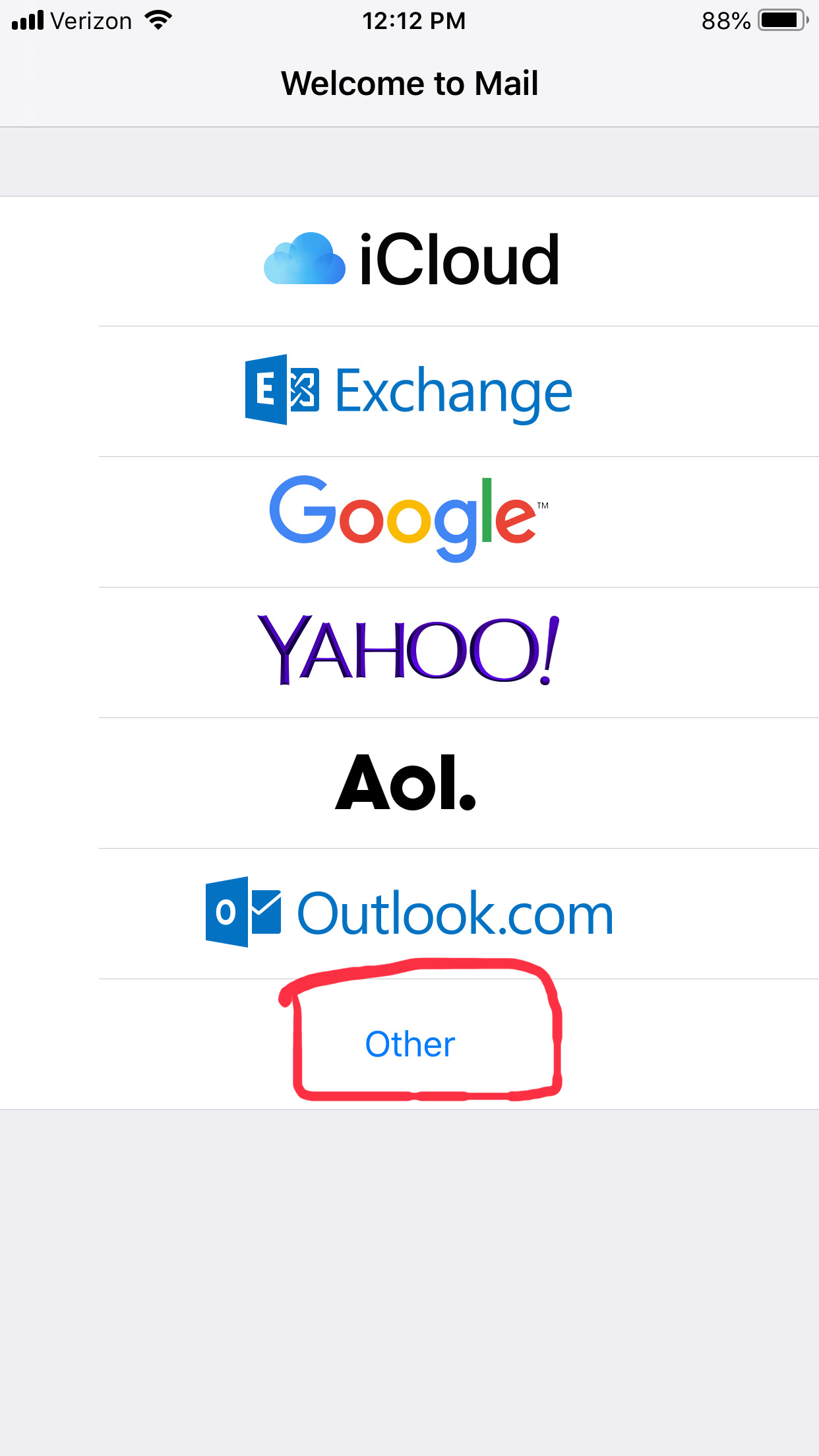
- Tap Other.
- Complete the Name, Address(email
address), Password and Description fields.
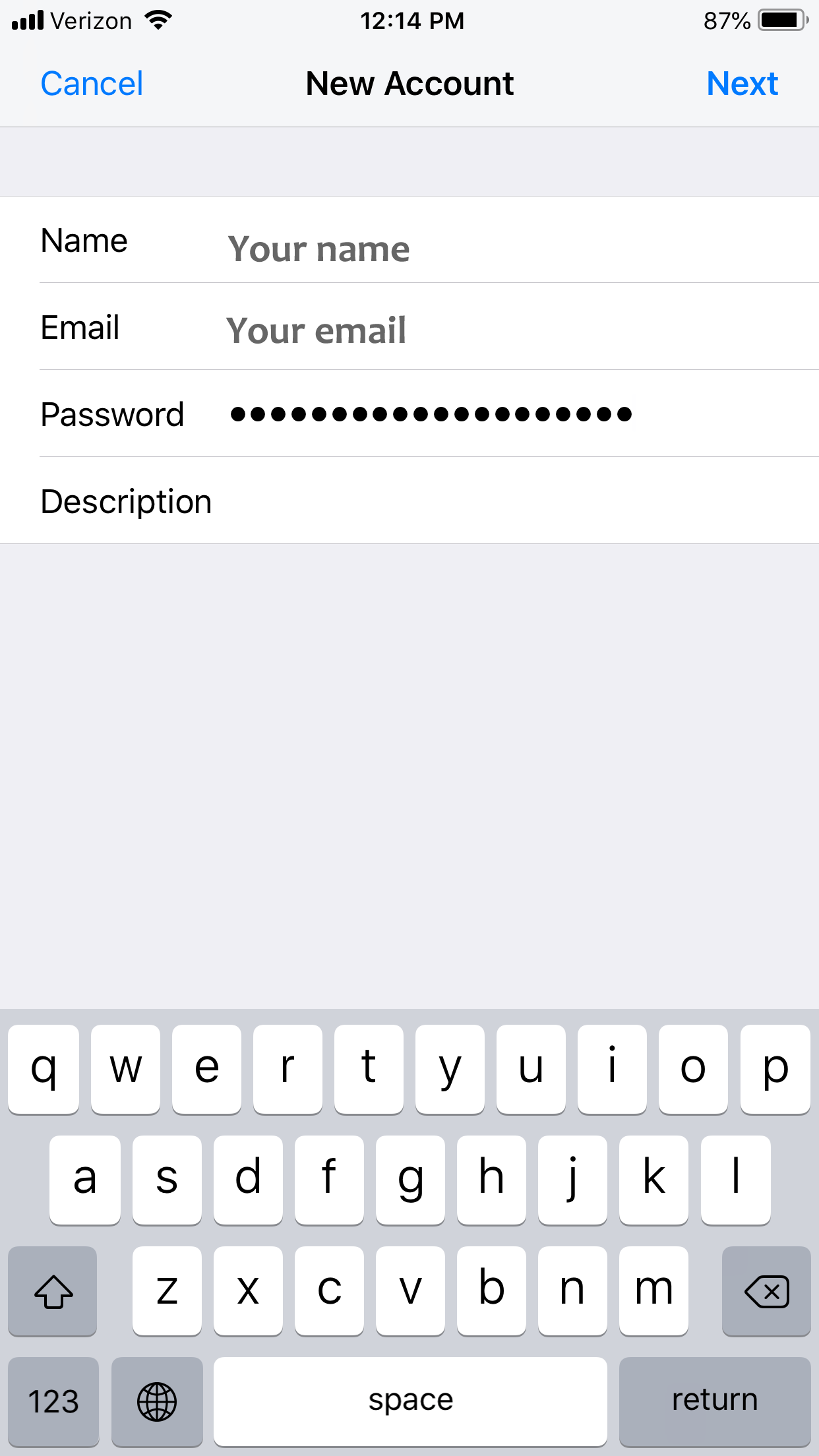
- Click Next.
- Ensure IMAP is selected.
- Enter the following information:INCOMING MAIL SERVER SETTINGS:
HOST NAME: webmail.sunrisedental.com
USER NAME: Your full e-mail address, i.e. (youremailaddress@sunrisedental.com)
PASSWORD: Password is the same password used to access webmail.
OUTGOING MAIL SERVER SETTINGS:
HOST NAME: webmail.sunrisedental.com
USER NAME: Your full e-mail address, i.e. (youremailaddress@sunrisedental.com)PASSWORD: Password is the same password used to access webmail.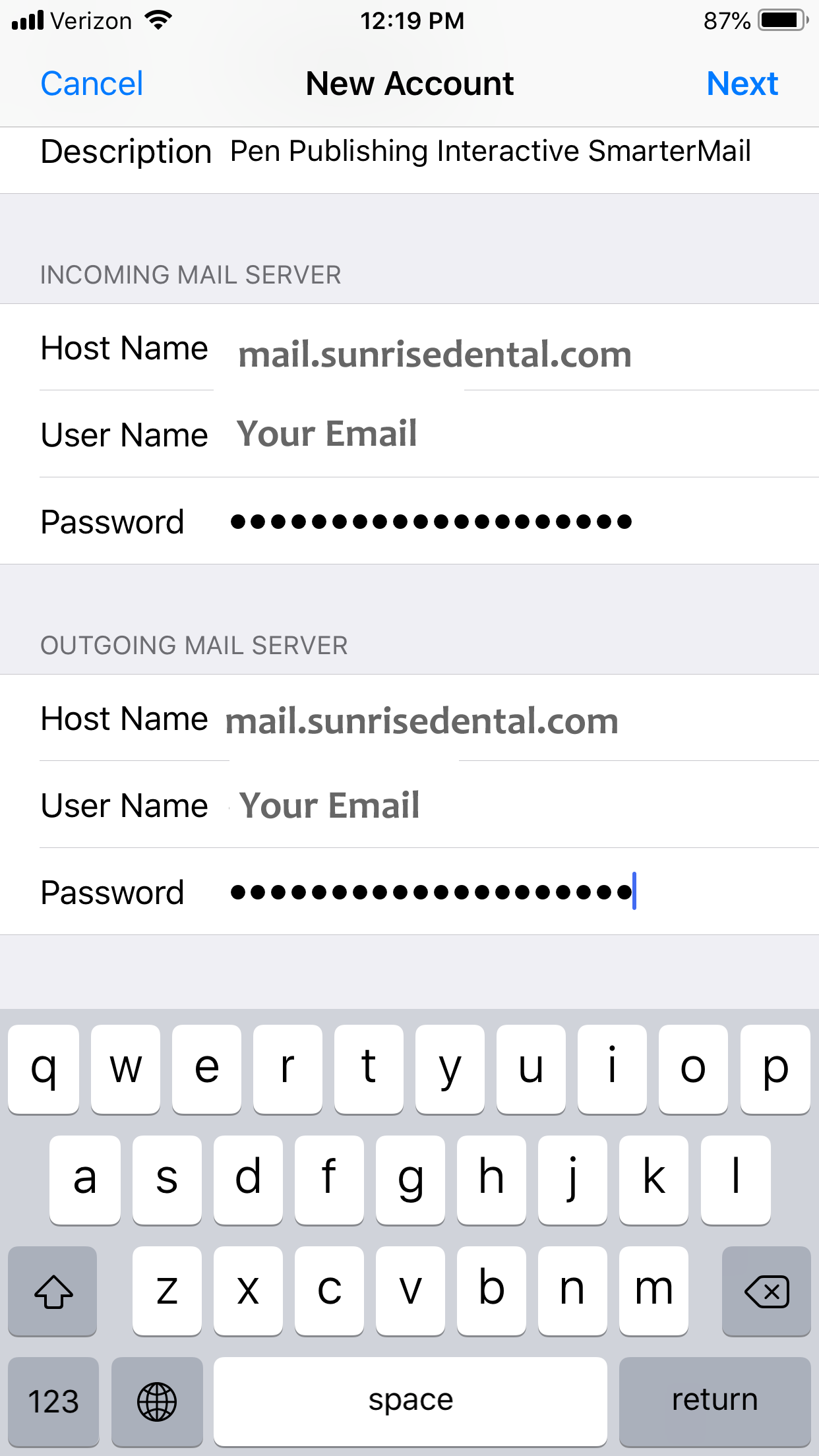
- Tap Next.
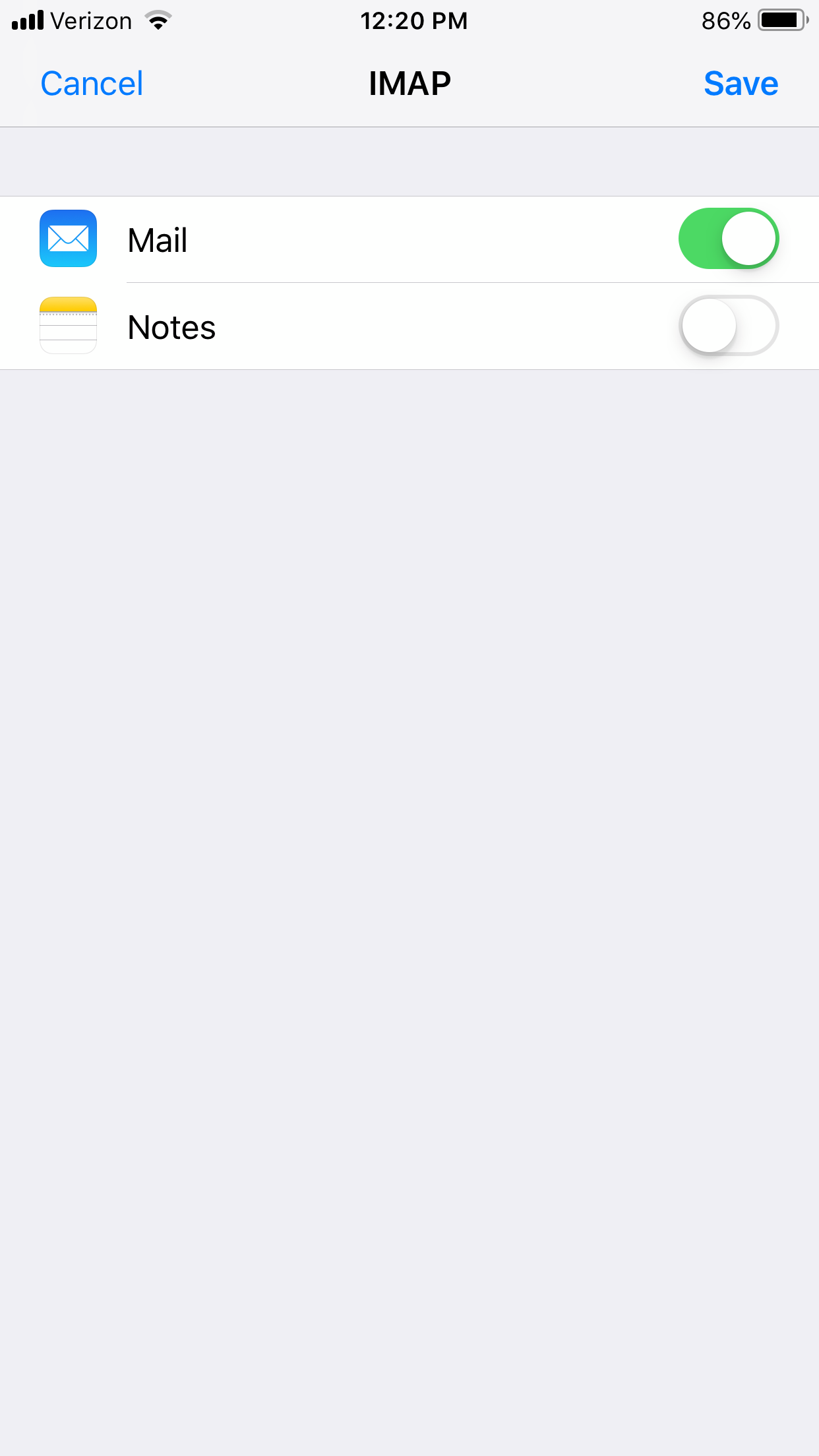
- Once the e-mail settings are set,
tap Save.
Troubleshooting Tips
If you’re still having trouble connecting to email, please ensure the following
is setup accordingly.
Go to your iPhone’s Settings.
Click Mail > Accounts.
Select the email account that is your email account.
Under IMAP, select Account.
This will display your incoming (IMAP) and outgoing (SMTP) mail server
information
Incoming Mail Server Settings
Server: webmail.sunrisedental.com
Port: 993
Encryption: SSL/TLS or SSL
Authentication Method: Encrypted Password
Outgoing Mail Server Settings
Server: webmail.sunrisedental.com
Port: 587
Encryption: StartTLS, SSL or SSL/TLS
Authentication Method: Encrypted Password
